
What’s the difference?
Firmware is software for your device to function, drivers are software that allows your device to talk to other devices. For example, BIOS is software for your motherboard, printer drivers are software that allows your computer to talk to your printer.
When should you update your firmware or drivers?
If your computer is working normally, but your external peripherals (docking station/printer/mouse/etc) are not, it may be time to update firmware/drivers for those products. If a computer is not performing well even after rebooting, it may be time to check for firmware/driver updates. An example for this would be, several usb peripherals not working on your laptop, but the same peripherals work on another machine.
Updating computer Drivers/Firmware
Since these posts are targeted towards IT professionals, we’ll be focusing on Dell and HP products ( that’s what most companies have in-house).
Dell:
Dell has a tool called “Dell command update”. Some employers may deploy this as part of their standard image, if it’s not deployed as a standard, then install it on the dell device you are working on. Running this tool will automatically search for and install the latest drivers and firmware. Overall, it’s a quick and easy way to update dell products and in most cases, it will resolve your issue. A lot of the time this will get you up to date, but if your issues persist then you can try manually checking dells website. I find that dell command update doesn’t always get you to the lates BIOS or install the latest drivers. Just google dell drivers and you’ll find the link to their support page.
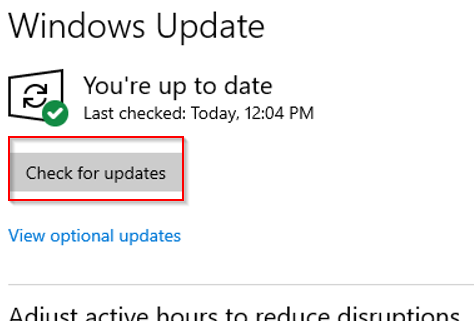
If dell updates didn’t take care of whatever problem you’re troubleshooting you can also try windows updates. Search “check” in the windows search bar and click on “check for updates”.

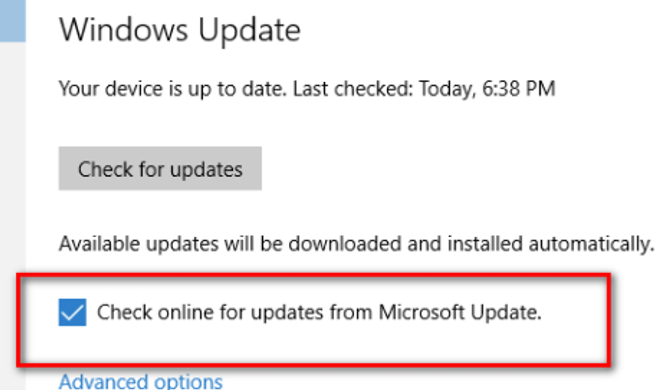
This should automatically start checking for updates. If it doesn’t start automatically, just click the “check for updates” button. If you’re feeling ballzy there is sometimes a “check online” option when checking for windows updates. I would only run that online option if you’re running out of troubleshooting options. It’s usually pretty good but can sometimes jack up your system and cause more issues (rarely, but it happens).
HP:
“HP image assistant” is the HP equivalent of Dell command update. It auto checks for drivers and firmware, but one thing I prefer here is that it provides the option to view the individual updates and check/uncheck anything you want or don’t want installed. Again, it’s a solid product, but I don’t trust it completely. If your issues persist, manually check HPs website for the latest updates and if that fails, try windows updates.
Drivers/Firmware for External devices
I’m mostly referring to docking stations here, but this applies to anything users have connected to their setup. Unlike Dell/HP you’ll almost always have to go straight to the manufacturer’s site to download and install the latest drivers/firmware.
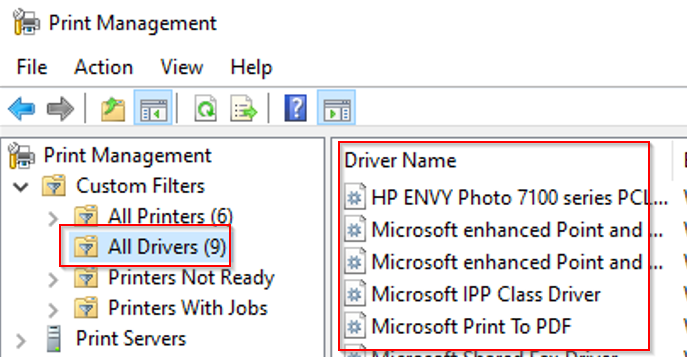
Print drivers are a little more complicated, but not by much. You still go to the manufacture’s site to download drivers; However, if you run into issues after installing a new print driver, you may want to remove old print drivers and try the new ones again. This can be done by using “Print Management”, its built into windows.
final tips
A lot of the time, employees will swear on their mama that the hardware is bad and they need a replacement. 9 times out of 10 the issue can be resolved by updating the firmware/drivers so don’t fall for the lies. If you have a lot on your plate and have the hardware to spare, then go ahead and replace the hardware and go about your day. There have been plenty of times where I just replaced a “faulty” docking station for the sake of time. Later on, I would update the firmware on the “bad” dock and add it back to our inventory.
If you have suggestions for future topics you would like to see covered, feel free to send an email through the “contact” page!